
Mac Mail Edit
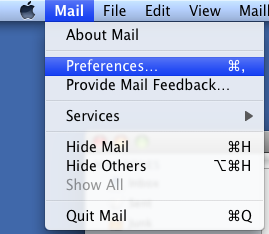
To begin editing the account you should click Mail on the menu bar and then select Preferences.
Click Accounts.
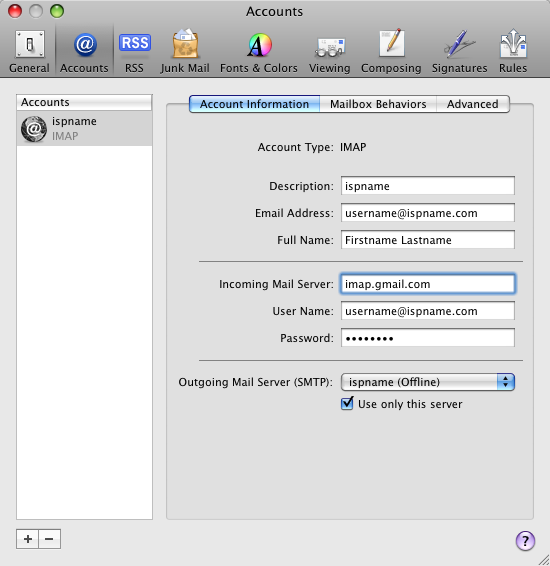
On the account information tab check the following:
Account Type: IMAP.
Description: The ISP's Name should go here avoid confusion.
Email Address: Your full email address. (username@dbstech.com)
Full Name: Your full name or desired display name.
Incoming Mail Server: imap.gmail.com
User Name: Your full email address. (username@dbstech.com)
Password: The email password.
Outgoing Mail Server (SMTP): Select the desired outgoing mail server (ispname).
User only this server: Checked.
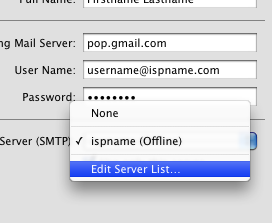
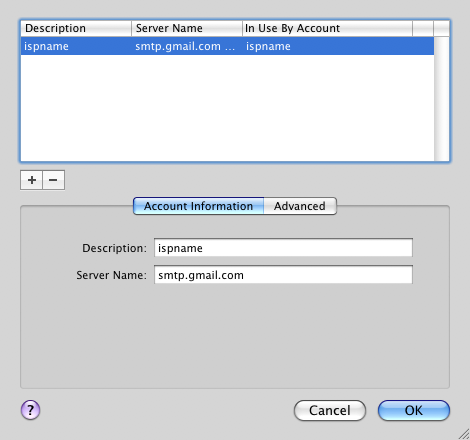
To verify SMTP settings click on the drop down list next to Outgoing Mail Server (SMTP) and select "Edit Server list".
Select the correct outgoing server from the list. Extra servers or old servers may cause issues, so it is recommended to remove them if necessary.
Description: The ISP name.
Server Name: smtp.gmail.com
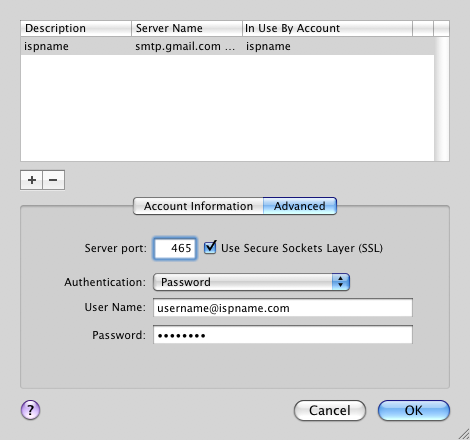
Select the Advanced tab.
On this tab there are a few settings that must be checked carefully.
Server Port: 465.
Use Secure Sockets Layer: Checked.
Authentication: Password.
Username: Your full email address. (username@dbstech.com)
Password: Verify the correct password is being used.
Click OK.
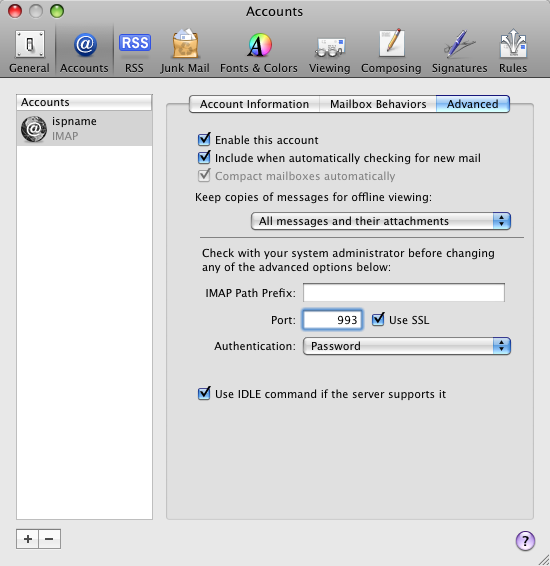
Select the Advanced tab on the main account screen.
Enable this account: Checked.
Include when automatically checking for new mail: Checked.
Keep copies of messages for offline viewing: All messages and their attachments.
Port: 993.
Use SSL: CHECKED
Authentication: Password.
Close the accounts screen.